Tech
How I set up a VPN on a $3 VPS
· 18 min read
I recently set up my own VPN on a rented Ubuntu server. It cost $3 for a month, and I used AmneziaVPN to set it up with the AmneziaWG protocol. If you'd like to try something similar, I'll walk through what I did, explain what each step is for, and show the problems I ran into.
I had looked into this a few years ago but put it aside. This time, I kept the experiment focused: choose a VPS I could pay for, configure SSH access, and use AmneziaVPN to install the VPN components.
Note: I'll use Ubuntu and AmneziaVPN here. If terms like VPS or SSH are new to you, I'll explain them before we use them.
Here, I want to share how I did it. I'll write everything step by step, so you can follow the same path and try it yourself. The cost of the experiment: $3.
In short, here is our big todo:
- Understand the basic picture: VPS, VPN protocols, and what we actually need.
- Choose a VPS and buy a server.
- Connect to the VPS from your PC.
- Install and configure the VPN on your PC and VPS.
- Connect.
First, let's get a picture of where your traffic goes and how the server fits in. Then we'll set it up and check the connection.
Let's go step by step.
0. Understand the basic picture
Before touching anything, I'll briefly explain what a VPN is, what a VPS is, how these two things are connected, and which VPN protocol we can use.
I'll touch only the basics here, without diving too deep into networking, encryption, tunneling, routing, etc. It's like a black hole: once you start exploring all this stuff, it's hard to stop. If you want to explore all of that — sure, go ahead, but be careful and don't lose track of the main goal. Maybe even set a timer for yourself for when to stop.
For now, we just need enough knowledge to make reasonable choices and roughly understand what we're doing.
What is a VPN?
VPN = Virtual Private Network.
Super simplified: a VPN creates an encrypted communication path between your device and a VPN server.
Your normal network packets are encrypted, wrapped inside other packets, and sent through your usual Internet connection to the VPN server. There, they're unpacked and continue to the destination website/server.
This communication path is what people call a VPN tunnel.
The tunnel isn't some new physical connection: your traffic still goes through your normal Wi-Fi/router/provider/Internet. It's just protected between your device and the VPN server.
Without a VPN, very roughly:
Your PC
↓
your local network / provider
↓
Internet
↓
Website
With a VPN:
Your PC
↓
encrypted VPN tunnel
(through your normal provider / Internet)
↓
VPN server
↓
Internet
↓
Website
Now your local network/ISP can see that you're communicating with the VPN server, but it can't read the encrypted contents of the traffic inside the tunnel. The destination website sees the VPN server's public IP instead of your normal public IP.
Important: this does not mean that the website suddenly knows nothing about you or that a VPN makes you anonymous. The website still sees whatever information you directly give it: your account, cookies, browser data, etc.
The VPN mainly changes the network path and protects the connection between:
you ↔ VPN server
Good enough for now.
What is a VPS?
VPS = Virtual Private Server.
It's basically another PC somewhere in the world that you rent from a company and can remotely control from your own devices. You can install things, run programs, host websites or agents, do whatever you want. Like your personal PC in another place.
Why would you want one? Well, one of the interesting things is that this PC can stay alive 24/7. Keeping your local laptop alive all the time is annoying, especially if you actually use it every day.
A VPS? It can just sit there running whatever you want.
How are VPN and VPS related?
Remember our VPN schema?
Your PC → VPN server → Website
Well, our VPS is going to become that VPN server.
When you buy the VPS, at first it's just a normal remote Linux machine. Next, we install VPN software on it and configure a VPN protocol. And now our VPS can work as a VPN server: it receives our encrypted traffic, decrypts it, and forwards it to the Internet.
What is a VPN protocol?
A VPN protocol is basically a set of rules describing how the VPN connection works: how the devices communicate, authenticate each other, encrypt traffic, create the tunnel, transport packets, etc.
How do we actually use one? There are applications that implement these protocols for us.
For example, in my case, I used the AmneziaWG protocol, and there's an app for it: AmneziaVPN.
Choose a protocol for the VPN
I wanted something that would work on my network without a lot of manual setup. Here are the options I considered and why I picked AmneziaWG.
-
WireGuard — a general-purpose VPN protocol. According to its description, it's simple, fast, and relatively easy to configure. The idea is creating an encrypted tunnel between peers (in our case, our PC and VPS) and sending traffic through it.
One of the problems for my use case is that standard WireGuard traffic has recognizable characteristics, so networks that use technologies like DPI to detect VPN traffic can identify/block it more easily. My friends also told me that standard WireGuard has been working poorly for them during the last few months. I took that into account when choosing what to try. It doesn't mean WireGuard works poorly everywhere; it was one clue about what might work for me.
-
AmneziaWG — also a general-purpose VPN protocol. It tries to solve this WireGuard problem: it keeps WireGuard's cryptographic core but changes some observable traffic characteristics — packet sizes, headers, timings, and other things — so it's harder for DPI systems to recognize the traffic as standard WireGuard. So it's basically WG + obfuscation on top.
That's what I used and later I'll show you how to set it up. It's easy enough to set up, and so far it works for me.
-
OpenVPN — an old classic VPN protocol. It's reliable and flexible, but for my first try it looked like more configuration than I wanted to deal with. Maybe later I'll give it a chance.
There are other protocols and proxy-based approaches too, but some looked harder to configure/understand, and some are more specific to particular use cases.
With those choices explained, let's set up the server.
1. Choose a VPS and buy a server
Todo for this stage:
- Decide what's important for your VPS in your situation.
- Compare VPS providers.
- Choose one.
- Buy it.
This part isn't hard, but it takes time to find and compare different services and figure out what's actually important for you.
For me, the main factors for choosing a VPS provider were:
-
Location/region. Where do you want your remote PC to be? It's usually better to choose something relatively close to you. The connection will generally be faster.
-
Latency. Basically, the delay between you and your VPS. Lower is usually better. If the provider gives you a test IP, you can check it with:
ping <TEST_IP> -
Network quality. Similar to the previous point, but not exactly the same: routing, stability, packet loss, bandwidth, and how good the route is from your current network.
-
Price. I wanted the cheapest one because this was just an experiment.
-
Payment methods. I mainly have Chinese/Russian cards and wallets, so I wanted something I could pay for with minimum cost/commission.
-
Company reputation. We all don't want to get scammed. Search reviews, Reddit/forum discussions, complaints, etc. before paying.
Of course, there are a bunch of other things that could be important. But again: for the first time, just to get a working VPN, for me this was enough.
How do you find the best VPS?
An LLM can help you make an initial shortlist. Then check each provider's available regions, current prices, payment methods, and network information yourself.
In my case, one recommendation initially looked like around $17, but when I opened the site, the Asian locations were much more expensive and the actual price was closer to $30. Another provider simply didn't have Asian servers available at that moment.
You can also ask an LLM to give you commands/tools to test your chosen VPS for network quality and latency. Also, keep in mind that network quality can be different at different times of day, so sometimes it might be useful to actually check it more than once.
In my case, I chose WebHorizon.
Why:
- It's cheap — around $3/month (~20 CNY) for the cheapest option.
- It has a suitable region for me.
- The latency/network quality looked relatively good from my network. If the provider gives you a test IP, you can simply
pingit or use their Looking Glass tool before buying. - It has payment methods that I can use.
- There weren't that many comments about the service, but I didn't find anything too catastrophic about it, so... Good enough for an experiment.
That's how it looks:
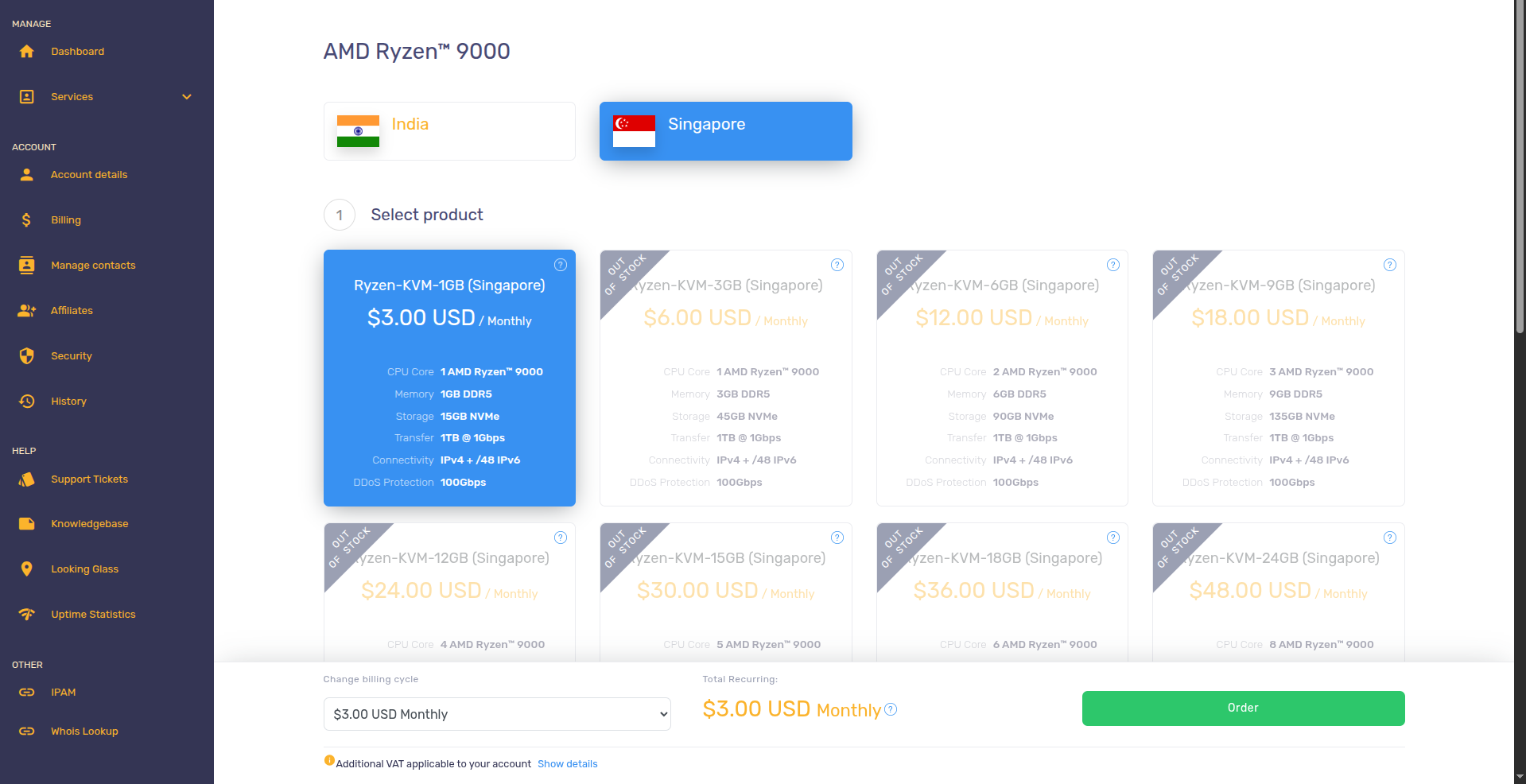
During setup, you can choose some IP/traffic-related options and the OS that you want.
I stayed with the defaults, chose Ubuntu, and bought it.
About the OS: choose whatever you're comfortable with. If you don't know what to choose, Ubuntu/Debian are pretty normal options.
Got it? Wonderful.
Now you have one more PC in another place and you can do basically whatever you want with it.
2. Connect to the VPS from your PC
Okay, here we can finally get our fingers on the keyboard.
Before we start blindly copying commands, here are the main concepts/things that will appear in this section. Feel free to read about them if you're not sure:
- SSH — how we remotely control the VPS.
- Public/private SSH keys — how we authenticate without relying on a password.
- A few Linux commands —
mkdir,nano,chmod, etc. - Basic networking things — IP addresses, ports, interfaces, routes,
ping. - SSH config — so we don't have to type a giant command every time.
How does SSH work?
SSH = Secure Shell.
It's a secure way to remotely control another computer over a network.
In our case:
your laptop ───── SSH ─────> your VPS
You type commands in the terminal on your PC, SSH sends them through the connection, and those commands are executed on the remote server.
The main idea for authentication here is a private + public key pair.
private key → stays ONLY on your PC

public key → goes to the VPS
Imagine you want to connect to your friend's computer.
First, you create both keys on your PC and give your friend your public key. He puts it on his computer and basically says:
okay, anyone who can prove they own the private key connected to this public key can come in.
Then, when you try to connect through SSH, your PC uses your private key to create a small cryptographic proof. Your friend's computer checks this proof using the public key you gave him before.
your PC has the private key
friend's PC has your public key

your PC creates a small proof
↓
friend's PC checks the proof
↓
correct?
↓
okay, come in
Your private key never leaves your PC.
Got it?
Good.
There is also another key pair on your friend's side — the host key pair. SSH uses it so your PC can check that you are actually connecting to your friend's computer and not some random machine pretending to be it.
That's basically what the fingerprint question during the first SSH connection is about.
So just remember:
private key = secret, stays with you

public key = safe to copy to the server

authorized_keys = list of public keys allowed to log in
Linux commands
These are commands that we're going to use. Use this as a cheat sheet:
mkdir   → create a directory
nano    → edit a text file
cat     → print a file
chmod   → change file permissions
ssh     → connect to another machine through SSH
And later, if you want to explore the networking side:
ip addr    → show network interfaces/IP addresses
ip route   → show the routing table
ss -tulpn  → show listening sockets/ports
ping       → test reachability/latency
Okay, enough theory.
Todo for this section:
- Create an SSH key pair on our PC.
- Put our public key on the VPS.
- Test key authentication.
- Create a shortcut in
~/.ssh/config. - Disable password login and keep SSH key login.
- Test everything again before closing the old connection.
Let's do it.
1. Create an SSH key pair
On your local PC:
ssh-keygen -t ed25519 -a 100 -f ~/.ssh/vpn_vps
This gives you two files:
~/.ssh/vpn_vps       # PRIVATE key — don't share it
~/.ssh/vpn_vps.pub   # PUBLIC key, ends with .pub — this one can be shared
Check and copy the public key:
cat ~/.ssh/vpn_vps.pub
2. Add the public key to your VPS
Connect to the VPS:
ssh root@<SERVER_IP>
You can find the server IP on your VPS provider's website.
The first time you connect, SSH may show you the server's host-key fingerprint and ask whether you trust it.
After accepting it, SSH saves that server identity locally, usually in:
~/.ssh/known_hosts
Now you're inside your server that is located somewhere else. Good.
Create the SSH folder if it doesn't exist:
mkdir -p ~/.ssh
Open the authorized keys file:
nano ~/.ssh/authorized_keys
Paste your public key there, save it, and exit.
Then set the permissions:
chmod 700 ~/.ssh
chmod 600 ~/.ssh/authorized_keys
3. Test the SSH key
Don't touch your current terminal session. Open another terminal on your local PC and try:
ssh -i ~/.ssh/vpn_vps root@<SERVER_IP>
Works? Good. Our VPS now has our public key, and our PC can prove that it owns the matching private key.
4. Create a shortcut
It's annoying to write this every time:
ssh -i ~/.ssh/vpn_vps root@<SERVER_IP>
So let's create an SSH config where we define a shortcut for it.
On your local PC:
nano ~/.ssh/config
Paste and save:
Host vpn-vps
    HostName <SERVER_IP>
    User root
    IdentityFile ~/.ssh/vpn_vps
    IdentitiesOnly yes
Now next time we can just write:
ssh vpn-vps
and we're inside our VPS. Easy.
Now let's start preparing it for our VPN.
5. Harden SSH a little
Our key login already works, so now let's disable password login and leave SSH-key login enabled.
Connect to the VPS again:
ssh vpn-vps
Create:
nano /etc/ssh/sshd_config.d/99-hardening.conf
Put this inside:
PubkeyAuthentication yes

PasswordAuthentication no

KbdInteractiveAuthentication no

PermitRootLogin prohibit-password
What are we doing here?
Basically:
public-key login → YES

password login → NO

interactive password-like login → NO

root login with password → NO

root login with our SSH key → YES
Before applying it, check that the SSH config is valid:
sshd -t
No output?
Good. That means SSH can read the configuration without errors. But will it actually use the settings we just added? Let's check:
sshd -T | grep -E '^(pubkeyauthentication|passwordauthentication|kbdinteractiveauthentication|permitrootlogin) '
In the output, look for pubkeyauthentication yes, passwordauthentication no, and kbdinteractiveauthentication no. For permitrootlogin, look for prohibit-password or without-password. Those two names mean the same thing here: root can log in with a key, but not with a password.
Here's the catch: SSH reads its configuration files in order and, for most settings, keeps the first value it finds. So another file read before 99-hardening.conf might already have set one of these values. If the output doesn't match, check for that earlier setting before reloading SSH.
Some servers also have Match blocks, which apply special rules to particular users or connections. If yours does, use sshd -T -C with your connection details to check which settings apply to you. The Ubuntu configuration guide has more on checking the settings SSH will use.
Now reload SSH:
systemctl reload ssh
Don't close your current SSH session yet.
Open a new terminal on your local PC and try:
ssh vpn-vps
Works?
Good.
Now we know we didn't lock ourselves out of our own server.
Our SSH setup is done.
If you want to stop here for a few minutes and explore what's happening:
ip addr
ip route
ss -tulpn
ping 127.0.0.1
These commands show your server's network addresses, where it sends traffic, and which programs are waiting for connections. If a field is unfamiliar, the command's manual page can explain it. An LLM can help too, but remove identifying details before sharing output.
It's actually pretty interesting once you have a real server in front of you instead of just diagrams.
3. Install and configure the VPN
Finally, the actual VPN part.
AmneziaWG is the protocol. AmneziaVPN is the application we'll use to configure and run it. So instead of manually dealing with a bunch of config files, we can let the app do most of the setup for us.
I'll show the Ubuntu/Linux way here. For Windows/macOS, check the Amnezia documentation.
On Ubuntu, first install the required libraries (from the official Linux installation guide):
sudo apt update
sudo apt install libxcb-cursor0 libxcb-xinerama0 libxcb-icccm4 libxcb-keysyms1 libopengl0 libxkbcommon-x11-0
Then download the .run installer from the latest stable AmneziaVPN release on GitHub and run it:
cd ~/Downloads
chmod +x ./AmneziaVPN_*_linux_x64.run
./AmneziaVPN_*_linux_x64.run
After installing it, open AmneziaVPN and choose:
Self-hosted VPN
You'll need to give it:
- your
SERVER_IP; - your SSH username (
rootin our case); - your SSH private key.
For the private key, use the one we created earlier on our local PC:
~/.ssh/vpn_vps
Remember:
vpn_vps = private key

vpn_vps.pub = public key
We need the private one here because Amnezia needs to authenticate to our VPS through SSH.
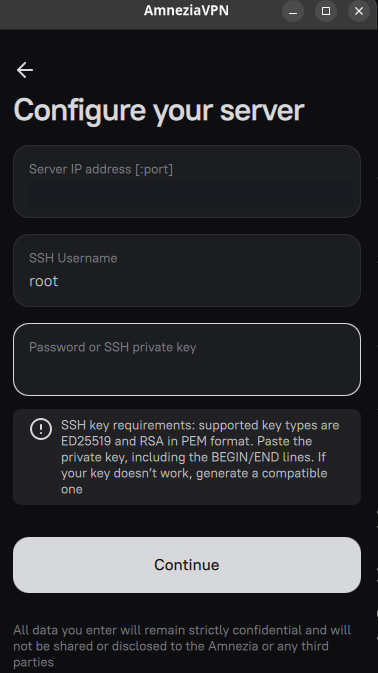
Amnezia connects to the VPS through SSH, installs the required server-side components/Docker containers, and configures the VPN protocol for us.
If you choose the automatic self-hosted setup, it installs AmneziaWG automatically. If you choose manual setup, select AmneziaWG yourself.
Let it install everything.
That's all. That's basically the setup.
4. Connect
Connect.
Wonderful. We've done it, we got our own VPN.
Now you can turn your VPN on and check your public IP. Then turn it off and check again.
If everything works, while the VPN is enabled you should see the public IP/location of your VPS instead of your normal public IP.
Now you know which IP address that site sees. That's a useful first check. It doesn't tell you whether every app on your device goes through the VPN or how well the connection will hold up over the next few days.
If setup fails, identify which step failed before changing things. The application logs, documentation, and relevant GitHub issues are useful places to start.
Problems I ran into
xterm-ghostty terminal error
When I tried to use nano through SSH, I got:
Error opening terminal: xterm-ghostty
I use Ghostty, and the problem was that Ghostty sets the terminal type to:
xterm-ghostty
but my remote Ubuntu server didn't know that terminal definition. A quick workaround for me was:
export TERM=xterm-256color
Then I ran nano again. Worked.
Docker confusion
At one point Docker wasn't installed on my VPS, and I thought I had to stop everything and install/configure it manually. Actually, for the normal Amnezia self-hosted flow, Amnezia itself handles the server setup over SSH and installs/uses Docker for its containers. So Docker not already being there before the Amnezia setup is not automatically a problem.
If the automatic Amnezia installation specifically fails because of Docker, then investigate Docker.
Don't randomly install ten things beforehand just because you think you'll need them.
Useful checks:
command -v docker
docker --version
systemctl status docker
SSH was hanging during key exchange
I also had another weird problem:
ssh vpn-vps
was getting stuck during the SSH handshake/key-exchange stage. In my case, adding this to the local SSH host config fixed it:
Host vpn-vps
    HostName <SERVER_IP>
    User root
    IdentityFile ~/.ssh/vpn_vps
    IdentitiesOnly yes
    KexAlgorithms curve25519-sha256
The important line was:
KexAlgorithms curve25519-sha256
If you don't have any problems, don't use it. I added it because my SSH connection was actually hanging during key exchange, and forcing this algorithm fixed the problem in my case. If your SSH works normally, you don't need it.
That's all
Wow.
You just set up the same basic idea behind all those magical VPN services:
your device
↓
encrypted VPN tunnel
↓
remote server
↓
Internet
I'm not saying this setup is perfect, super reliable, impossible to detect, or suitable for every possible situation. I'm going to keep exploring it during the next few weeks. But I think it's a really good starting point if you want to explore VPSs, SSH, Linux, networking, and VPNs by actually building something instead of only reading theory.
For this experiment, the result is a personal VPN that I can configure on my own VPS. Longer-term reliability is something I still need to evaluate.
If you have your own ideas, corrections, things I missed, or suggestions — feel free to connect with me on LinkedIn or GitHub.